
iPhone app for Wi-Fi installers
Room-by-room Wi-Fi tests and a PDF for the client
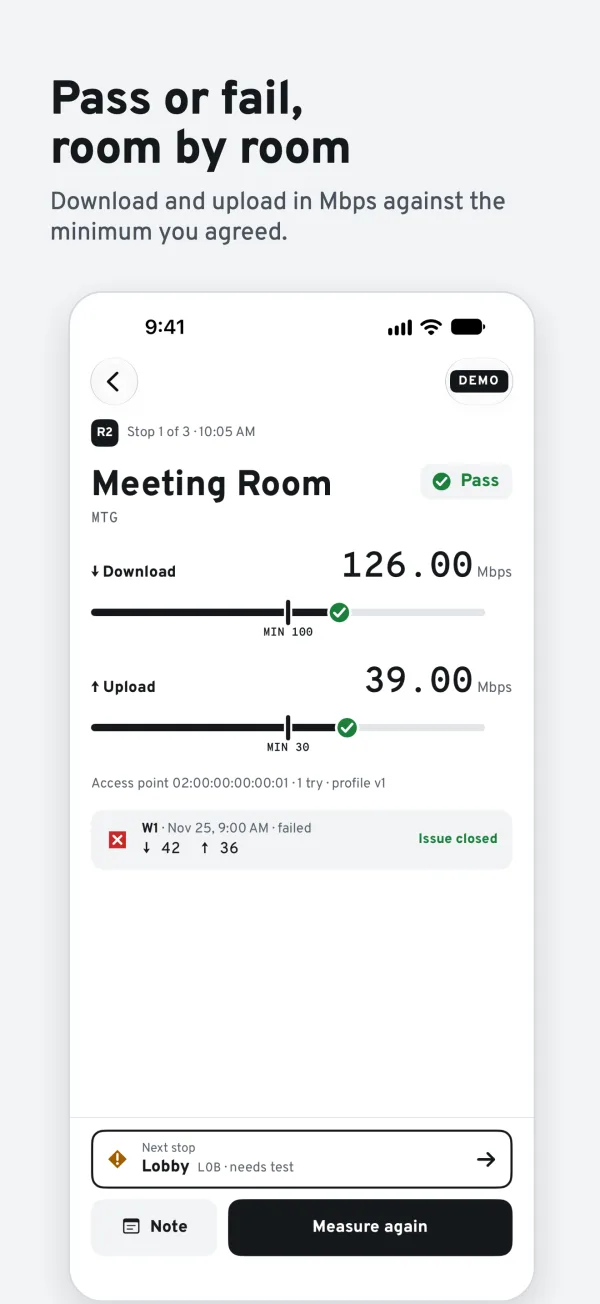
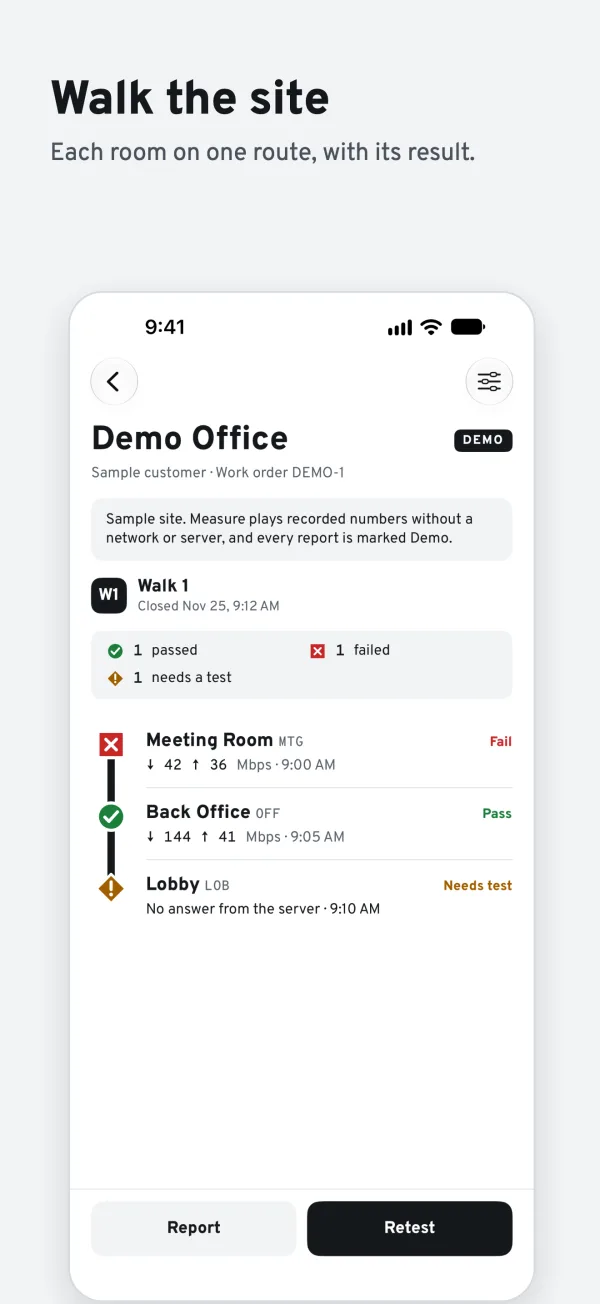
List the rooms and the download and upload speeds you agreed with the client. On site, stand in each room and tap Measure. AirProof tests against a computer on the wired network and marks the room Pass or Fail.
How a walk goes
-
Add the site
Enter the rooms in walking order, the minimums for download and upload, and the IPv4 address of a computer on the wired network running
iperf3 -s. -
Measure each room
Join the client's Wi-Fi and tap Measure. AirProof runs a 10-second TCP test in each direction, and you see both numbers in under 30 seconds.
-
Retest and hand over
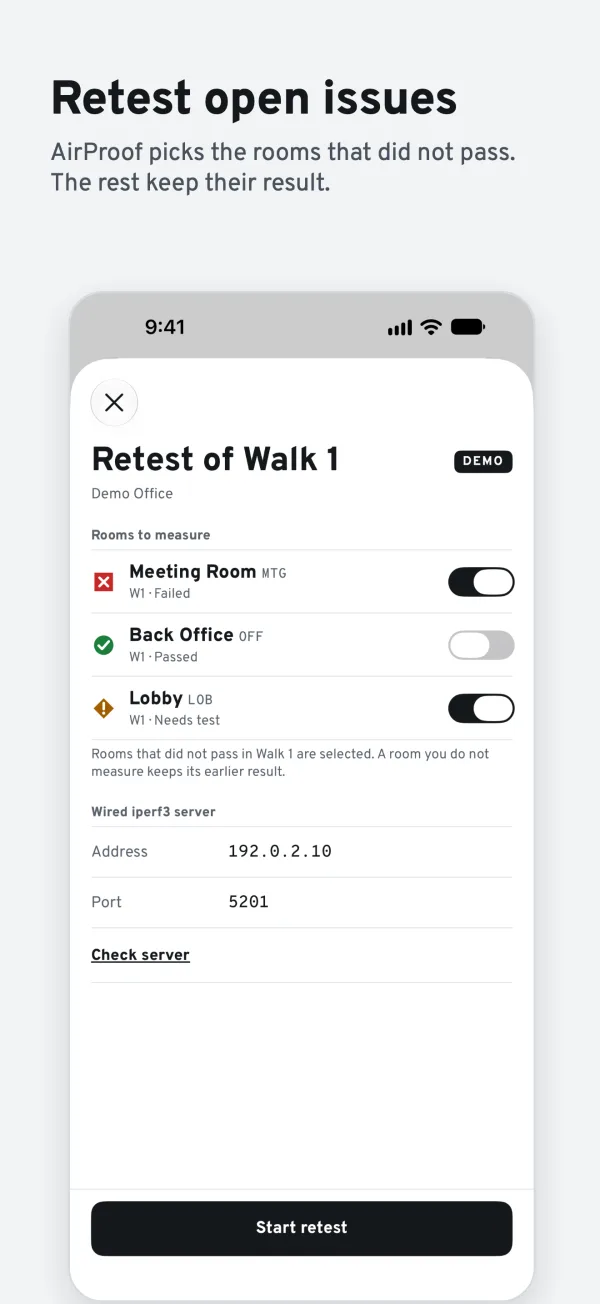
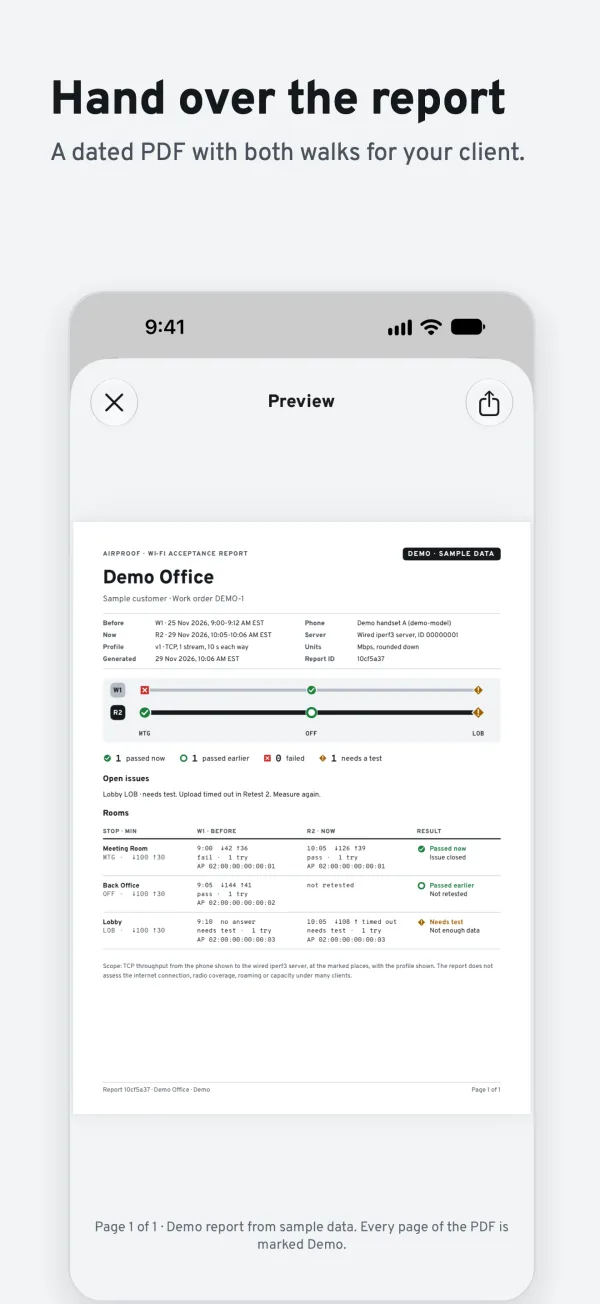
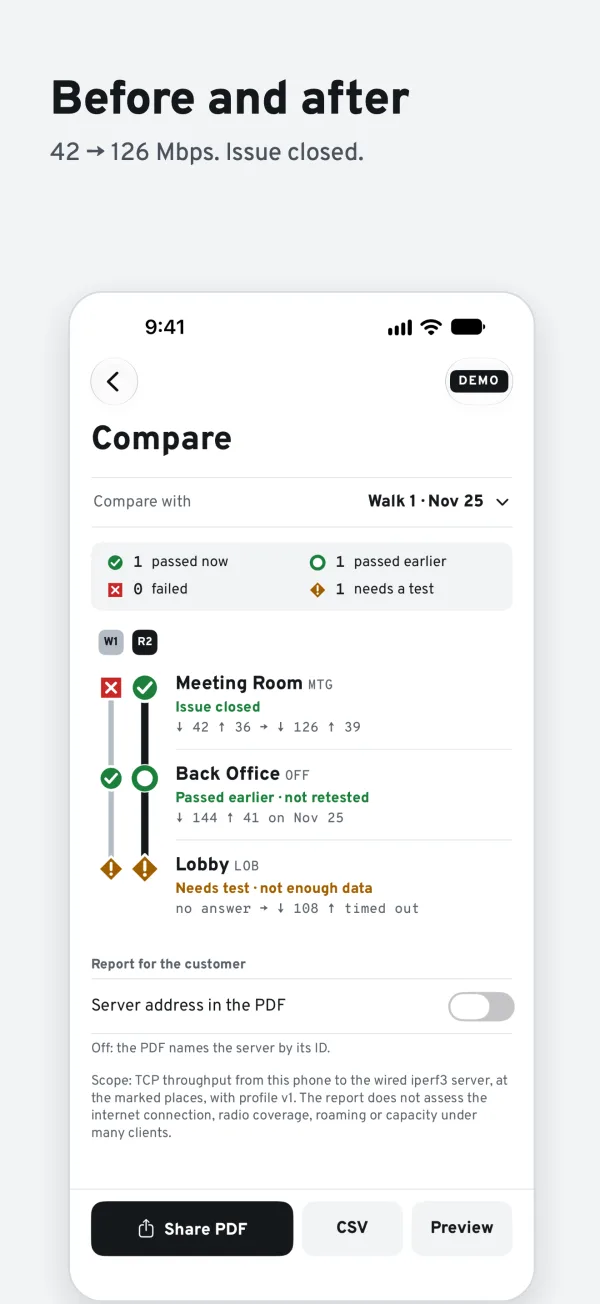
Start a retest and AirProof picks the rooms that did not pass. Compare the two walks, then share the PDF and a CSV.
Screens
What you need
-
A computer on the site's wired network running iperf3 as a server:
iperf3 -s, port 5201 by default. iperf2 servers do not work. - An iPhone with iOS 17 or later, joined to the Wi-Fi you hand over.
- For a first look you need neither: Try demo opens a sample site that works offline, with a retest and a PDF.
What the report shows
The PDF lists TCP throughput in the rooms you measured, with the phone, server, test profile and time of each result. A retest report puts both walks side by side and lists the open issues. The paper size is US Letter.
For coverage heat maps or internet speed tests, use another tool. AirProof measures the Wi-Fi link between the phone and the wired server.
Your data
Sites and measurements stay on your iPhone. AirProof needs no account and sends nothing to us. A PDF or CSV leaves the phone only when you share it.
Questions
Write to support@chama.pro. The support page covers server setup and the messages AirProof shows.